How Can You Cut PC Boot Time in Half by Disabling Unnecessary Apps?
Written By
PWM creation teams
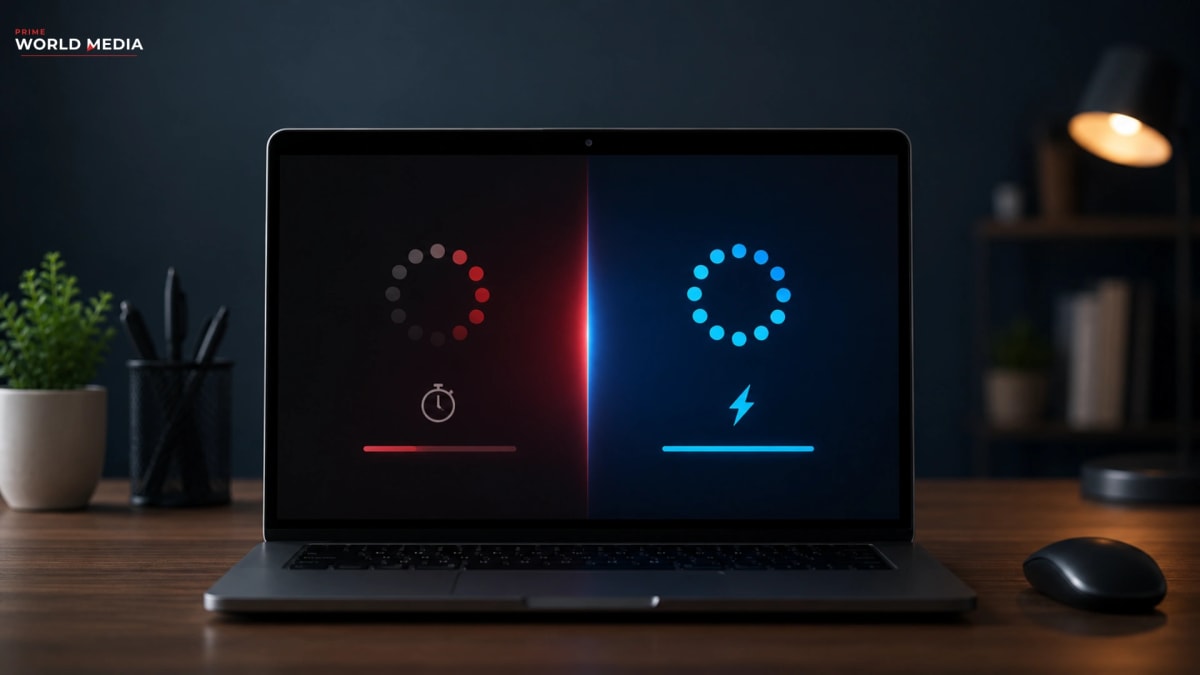
Why do Windows 11 and macOS Sonoma boot slowly compared to previous versions? It is because of security reasons, background AI indexing, and more startup hooks. 45-50 seconds is the average boot time, which is up from 2023. Here, the operating system is not wrong. It is those 15-25 apps that launch automatically without your knowledge.
Every app that adds itself to startup steals time you might not get back. You can witness it in the example of Spotify, which checks for updates before you open your phone. Dropbox saves files you haven’t opened yet. Adobe will run background services for software you might not even open today. Google itself goes on syncing data at night while you are not using your phone. Every app adds 2 to 5 seconds to the boot. Now, we have plenty of apps; let's say we multiply this by fifteen apps and you lose 45 seconds every morning. This becomes 4 minutes in a week and 200 minutes per year to infinity. The math is brutal.
While researching this topic, I understand the basics and what to do about this. The following article will help you understand which apps you should disable, which to keep, and how to know the difference. These aren't going to be generic tips-they're going to be research-backed, practical tips. You will find instructions for Windows 11, Windows 10, and macOS.
What you will learn in this article:
- Three methods to identify startup apps
- Two ways to disable them safely
- One habit to prevent them from creeping back
The goal is to boot in under thirty seconds without breaking anything.
How Do You Identify Which Apps Are Slowing Your Boot?
There are 15 plus apps on your device; how do you identify which are the apps that are slowing your boot?
Windows Task Manager: Windows 11 and 10 have a built-in tool that is missed by most of the users. Task Manager’s Startup tab shows each and every app that launches at boot and is sorted by impact.
- High Impact- app delays boot(significantly)
- Low Impact- app will run but does not slow down
- Not measured- Windows has not tracked it yet
To open Task Manager Startup, follow the steps
- Press ctrl+shift+esc
- Click on More details if simplified view is visible
- Click on Startup app
- Sort by Startup impact (High, Low or Not measured)
- Right-click on the app to enable or disable
macOS: macOS buries this in a different section. System Settings-General-Login items. This list does show applications that create windows when starting. This list, however, does not list background processes. Background processes now have their own section named Allow in background. Introduced in macOS Sonoma, this is the actual larger problem on the Mac, as the window applications are readily available; the background processes, however, are invisible.
Third-party tools (2026): Third-party tools are getting really sophisticated. AutoRuns by Microsoft Sysinternals will show you all entries, including hidden registry entries; it is free and has been used by everyone for the past twenty years. CCleaner added a 'startup optimizer' to tell you which applications you can disable depending on information collected by other users. Bleachbit is an open-source version with no advertisements; only use it if Task Manager and system settings do not list the required entries.
Which Apps Should You Disable and Which Must Stay?
Some apps are good to disable because they work flawlessly when you decide to open them yourself. Spotify doesn't have to open with Windows so that it can play your music. Creative Cloud doesn't have to sync files before you open Photoshop. Slack doesn't have to pull up new messages before you sign on. Discord doesn't have to finish updating before you can jump onto a server. The app adds functionality; it doesn't require a necessary function to have it start when the computer boots.
Some need to be enabled because Windows or your hardware requires them to run: Windows Security protects you during the critical time between your system booting up; your audio drivers that will allow your speakers to function from the instant the system turns on. NVIDIA control panel or AMD Software for your graphics settings; OneDrive if your work requires this feature to sync automatically; manufacturer programs like Dell Power Manager or Lenovo Vantage for battery settings and thermal control. Switch these off, and something may break.
Then there are the in-between apps. OneDrive if you use it some, but not every day. Dropbox if you upload large files, but only sporadically. VPN clients, if they are only connected to work. Printer drivers if you print rarely. The test is simple. Disable it. Reboot. Use your computer normally for one day. If you don't feel like anything is missing, turn your computer off again. If running the program normally from within the command line produces no errors, keep it off. If it does produce an error, or one of your other functions is broken, turn the computer back on.
How Do You Disable Startup Apps on Windows 11 and 10?
Firstly, use the Task Manager.
Press Ctrl + Shift + Esc, then the Startup tab.
Right-click high-impact apps you do not need the second they come on, and then Disable. The program will not be uninstalled, and can be run by simply double-clicking; it will just not be run when the computer starts up. Turn off any other high-impact apps you don't need running right away. Now take a look at the medium-impact apps; there is likely a lot more you can turn off here. There is no need to turn off the low-impact apps; it does not help enough.
The second way is the Settings app.
Windows 11 created a Startup section within Apps. Click Settings, then Apps, then Startup; you'll find toggle switches instead of right-click menus. While much tidier than Task Manager, fewer apps are listed. Some background services aren't even listed there. So you should only use it if you want a simple summary of some apps. If you're using Task Manager, it lists all the apps, and you should use it instead of this if you're looking at a full list. I usually check both: Settings for a quick glance of the obvious apps and then Task Manager for the hidden ones.
The third way is Registry Editor.
This is only to be used by users familiar with it. You will want to locate the key: HKEYCURRENTUSER\Software\Microsoft\Windows\CurrentVersion\Run.
Anything here loads up only on your user account. A couple of these things try to stubbornly restart themselves and re-add themselves after a Windows update. You will want to delete it in this location.WARNING: You can really screw up your computer if you mess up in here; back up the registry before you start. Just export that key before doing any modifications. I do this mostly for ones I can't seem to get rid of otherwise.
How Do You Manage Startup Apps on macOS Sonoma and Ventura?
It's a bit more complicated on a Mac. Go to your System Settings, then go to General, then go to Login Items. This shows you any application that starts up with a window. To get rid of anything you don't need, you simply click the minus button. It's very easy. The problem, however, is that it doesn't show you everything. Apple has separated window applications from running background processes on Sonoma. And it is the background processes which are really slowing you down.
Section two is 'Allow in background'. Same location. System Settings, General, Login items, and then scroll down. This lists apps that have background permissions to run without windows, e.g., Cloud sync, background updaters and helper applications, which most people wouldn't notice as present in this list and were only recently added in Sonoma and its successive updates. Disable any app you don't recognize; if something is going to fail, turn back on later. Turn everything off here apart from 'Find my' and 'iCloud Keychain' as those both legitimately need the background.
macOS uses LaunchAgents and LaunchDaemons to run processes for apps that are stubborn. LaunchAgents are for a user account, and LaunchDaemons run for the system. They are plist files that you can find in the Library folder. Apps such as Adobe, Google, and Microsoft love to stick these things here. The processes will continue to run even after being unchecked in the Login Items window. Check the /Library/LaunchAgents folder and the ~/Library/LaunchAgents folder, drag anything you feel is suspicious into a backup folder, and restart. If it's not causing problems, you can delete the file. This method can be tiresome, but I generally only have to do this after an entire reformat and OS reinstall when I need the system under my tightest control.
What Are the Hidden Startup Apps You Never See?
Task Scheduler is where startup apps go to die-silently. Type 'Task Scheduler' into the start search box. Then go to 'Task Scheduler Library'. This is where non-startup apps run. Adobe updates at boot-up time. Google runs updates at boot-up time. HP printers do their maintenance work. They are not 'start-up applications' in Task Manager but are loaded into the system on startup by the Task Scheduler. So their function is the same: they hog bandwidth at startup, they phone home, they use resources at startup, and they slow down your boot process. You need to right-click non-Microsoft tasks in the list and choose Disable task. Always check on Google if you don't know what it is.
Browser extensions are disguised start-up apps:
- Chrome, Edge, Firefox, Safari. Extensions that use background pages fire up helper processes at boot
- Password Managers sync vaults
- VPNs test connections.
- Ad-blockers test lists.
- All load Memory and CPU usage
Open your browser. Type chrome://extensions. Disable what you do not need every day. Do the same for edge://extensions and about: addons. The browser feels faster. Boot feels faster. Connection is tangible.
The hidden apps in 2026 are AI services. Microsoft Copilot's hidden task indexes your background processes. Apple Intelligence uses local data processing. Google Gemini creates system tray hooks. They are not optional, as in how you install them. They are system-integrated.
- On Windows 11, you can turn Copilot off under Settings>Privacy & Security.
- On Mac, you turn off Apple Intelligence under System Settings>Apple Intelligence & Siri.
- Google Gemini is a bit tricky since it embeds within the Chrome integration. Go through all your AI settings and turn off what you do not need.
How Do You Measure and Maintain Your Boot Time Gains?
Measure your starting point before changing anything. This is hidden in Windows within Event Viewer. Press Windows key + R. Type eventvwr, then press Enter. Go to Applications and Services Logs, Microsoft, Windows, Diagnostics-Performance, and Operational. Scroll to find Event ID 100. This represents Boot performance monitoring. The Boot Duration shows a time in milliseconds. 1000 milliseconds is one second. Note your number down. Mine was forty-seven seconds, although yours might be considerably worse.
Once you disable the apps, take another measure. The same path, the same Event ID. Subtract one measure from another. If your result is 15, you won. If there's no difference, then you disabled the wrong apps or your bottleneck is your hardware, not software. Every month you must do the Task Manager check again, because the apps re-add themselves after the updates. It is the case with Adobe, Google, and Microsoft. They presume that you do want them back, but this presumption is wrong. Make a habit out of it, and you'll never be bothered by any application slowing your PC down. First Monday of every month: check, disable, reboot, and measure.
Not everything can be fixed with software.
If the computer still takes more than 2 minutes to boot up and the HDD is old, replace it with an SSD. The 500 gigabytes SATA SSD will cost under $50 back in 2026. A 1 terabyte NVMe SSD will cost less than eighty dollars. Hardware changeover is the biggest change you can make to your computer. Changing to an SSD increases boot speed more than any other optimization software you install. Software optimization helps; hardware replacement triumphs. Knowing when to stop tweaking and to start buying can be difficult. I have a general rule. If software optimization saves you less than 20 seconds, hardware is the way to go.
What Is the 2026 Approach to Startup Management?
But it's not just the applications themselves that are evolving; the OSs are in 2026. W11 23H2 has better startup impact ratings (more accurate and clearer categories), and Sonoma now shows background process visualization (what's hiding, what runs), and Google is experimenting with app hibernation on Chrome OS (similar to Android's way of doing things) and could well bring this to Windows. The tide is turning in the other direction; transparency will not diminish, the OS vendors are finally realizing it is their fault that the system boots up with 50 bloats.
AI has entered into the management of your PC. There's an application, Microsoft PC Manager, being tested out now in China which claims to use machine learning to offer recommendations for apps to disable. The AI tries to look at what your normal patterns of use are and predict which applications you do and don't need. CCleaner incorporated some of these features in 2025. Their method is to mine usage data collected from millions of users. The recommendations are pretty good, although I'd not say perfect. I still check every suggested application manually. AI should advise, not direct. You're the one who makes the decision-because your workflow is individual to you, and no algorithm can know better than you what you actually require.
More aggressive startup management seems likely with the rumors for Windows 12.
- Integrated app hibernation
- Background processes killed without input from the user
- Memory management being optimized and more automatic
There is no certainty on any of these predictions-only speculation-but the trend seems pretty obvious. Microsoft's goal seems to be to do even more of this for you, but until it does, these will continue to remain skills that need to be acquired on a case-by-case basis. Know what tools you can and cannot get rid of. Form these habits now, and Windows 12 will just be another evolution in operating system interfaces. The underlying concept has always remained the same.
FAQs
1.How do I know if an app is safe to disable?
It should be safe to do so if you are not using it to operate Windows or macOS, and it could also be opened manually. Search for your app's name if you suspect there is a problem, and then disable the app.
2.Will disabling startup apps break anything?
No, disabling does not uninstall the app. It only stops auto-launch. The app will work normally when you click it. System apps will not let you disable them anyway. Windows protects its own. If you disable something important by mistake, re-enable it.
3.Why do apps re-enable themselves after updates?
Developers always assume that you want their app running. Updates reset settings to default. Adobe does this on a regular basis. Google does this monthly. Microsoft does this with every feature update.
4.How much time can I actually save?
On an SSD, disabling five to ten apps saves 15 to 30 seconds.
On a hard drive, the same saves sixty to one hundred twenty seconds.
The bigger win is RAM and CPU. Freed resources make your whole session a little faster. Boot time is just the visible metric.
5.Is Task Manager enough or do I need other tools?
Task Manager handles 90% of cases. Use Autoruns only for stubborn apps that re-add themselves. Use CCleaner only if you want suggestions. Use Event Viewer only to measure boot time. Most users never need more than Task Manager and Settings.
6.Does macOS have the same problem as Windows?
Yes, but less severe. Mac apps are better. The bigger issue is Allow in Background, not Login Items. Sonoma added this section specifically because background processes were hiding. Check it monthly. Toggle off what you do not recognize. macOS is cleaner, not clean.
7.When should I just buy an SSD instead of tweaking?
If your boot time is over 2 minutes and you use a hard drive, then only buy an SSD. In 2026, prices are low enough that software tweaking is a waste of time. A fifty-dollar SSD transforms everything. Boot time. App launch. File copy. It is the best money you can spend on an old PC. Software optimization is for SSDs that should be fast but are not. Hardware replacement is for systems that never had a chance.
PWM creation teams
Editorial Lead at PRIME WORLD MEDIA. Dedicated to delivering precise, high-impact journalism from around the globe.